Using the Progress report, educators can see which students have completed the Launchpad. These students now have an initial standing in the Progress Report, their starting place in DreamBox Math.
- Teachers can see the initial standing for all students in their classroom/s.
- Administrators can export and review the initial standing for all students in a school.
Where Can I See Students' Initial Standing?
If a student has completed Launchpad they will have an initial standing on the Progress report. Their initial standing is their starting point in DreamBox Math.
- Teachers can see which students in their classroom/s have an initial standing on the Progress report.
- Administrators can export Progress data for an entire school and see all students who have or do not have an initial standing.
Locating Students' Initial Standing in the Progress Report (Teachers & Administrators)
Follow the role-based directions below to see which students have an initial standing in DreamBox Math in your classroom or at a school after completing the Launchpad. Click a role to jump to a specific set of directions.
Teachers
To see which students have an initial standing and which have not been placed (have not completed Launchpad) in your classroom:
- Open the Progress Report and select a classroom (if needed).
- The Classroom view lists all students in a classroom and their initial standing, if they have one. Students who do not have an initial standing and have not completed Launchpad will show "This student hasn't been placed yet."
(Click image to expand it)
Administrators
To see which students have an initial standing and which have not been placed (have not completed Launchpad) at a school:
- Open the Progress Report and select a school (if needed).
- Click the View All Student Progress export link on the Progress Trends view.
(Click image to enlarge it)
- In the pop-up window: click Submit Export, and then View My Exports after the window updates.
| 1. Click Submit Export | 2. Click View My Exports |
|
(Click image to enlarge it) |
(Click image to enlarge it) |
- When the Reports page opens, scroll down to the My Exports section (if needed). The export will take some time to process. When it is ready, click Save to download the spreadsheet.
(Click image to enlarge it)
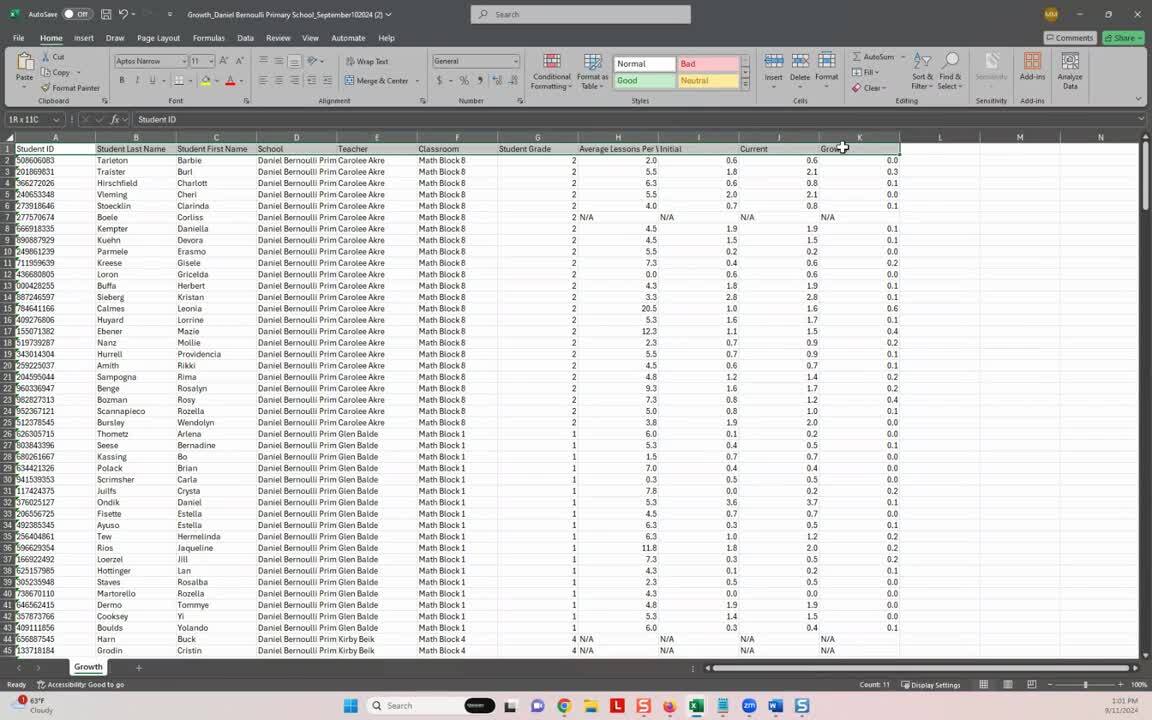
- Open the downloaded spreadsheet, enable editing, and filter the Initial standing column either for students showing a number, or for all students showing "NA".
Need help filtering the spreadsheet?
Watch the video below to see how an administrator would filter an exported Progress report Excel file to view only students who do NOT have an initial standing at a school.
Initial Standing FAQs
| Q: What does the initial standing number mean? |
A: The number representing a student's initial standing corresponds to their starting point in DreamBox Math. For example:
| Student 1 | Initial Standing = 0.8 | Student 1's starting point is close to 1st grade but not quite at 1st grade level. |
| Student 2 | Initial Standing = 1.1 | Student 2's starting point is at the beginning of 1st grade. |
| Student 3 | Initial Standing = 1.8 | Student 3's starting point is close to the end of 1st grade, near 2nd grade. |
| Q: How long does it take for students' initial standing to show up on the Progress Report after the student has completed Launchpad? |
A: After a student finishes the Launchpad placement their initial standing will appear in the Progress Report the next day.
If a student has started Launchpad but not completed it within 30 days, they will receive an initial standing on the Progress Report (returning students will need to complete at least one lesson with demonstrated understanding).
Related to
Updated