In the 3rd-5th grade learning environment, students can:
- Choose the lesson they want to play.
- Earn coins as they complete lessons that they can use in-program to personalize the environment.
- Track their learning progress.
- Update their avatar, background, and audio choices.
- Play nano and mini-games.
(Aviso: Pulsa aquí para leer el artículo en español)
Student Introductory Video
When a student signs in and sees the 3rd-5th grade learning environment for the first time, they see this video:

(Click arrow to play video)
The My Lessons Page
The My Lessons page is the landing page of the 3rd-5th grade learning environment. Inside My Lessons, students can:
- Choose the lesson they want to play next.
- See and play assigned lessons.
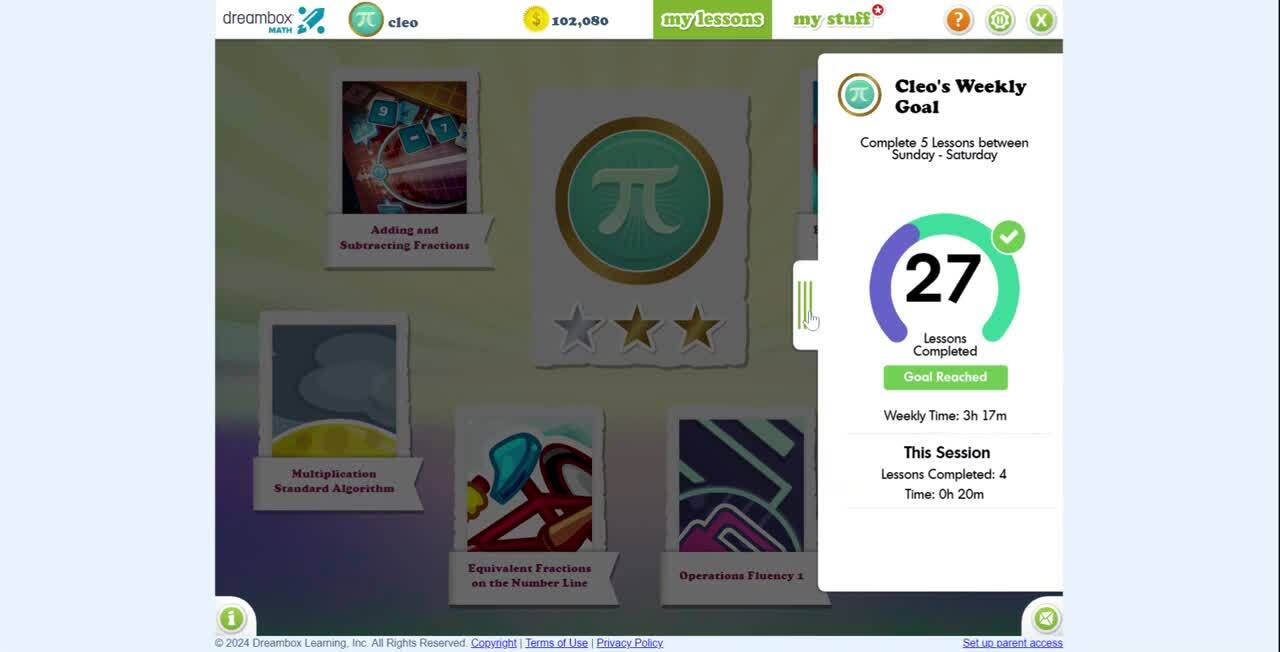
- Open the lesson tracker to see their weekly progress.
- Play a nanogame (when available).
(Click image to enlarge it)
Students usually see six lesson tiles on the My Lessons page, unless a lesson has been replaced by a nanogame or an unavailable lesson icon.
Nanogames
| Nanogame icons appear as students play lessons and progress in DreamBox Math, they may be offered a nano-game. Nano-games are fun, 15- to 30-second minigames that disappear after they are played. Students can play a nano-game when they see a blue game controller tile as one of the options on their My Lessons page. |
Unavailable Lessons
| When students see unavailable lesson icons in My Lessons (lesson icons are grayed out), DreamBox Math is steering the student toward lessons the student needs to complete in preparation for new content. The lesson/s will remain unavailable until DreamBox Math confirms the student is ready for the new content. The quickest way to do this is for the student to continue to play and complete lessons that are still available. |
The Lesson Tracker
Students can click a tab on the right side of the Lesson Chooser and see their progress toward the weekly goal of completing 5 lessons a week. When students have completed 5 lessons between Sunday and Saturday, they will be congratulated in the tab and earn their first "Week Streak". The border around their lesson count will also change color based on how many lessons they have completed each week. Each consecutive week the student completes 5 lessons their Week Streak will grow. If they do not complete 5 lessons, the tab will revert to show the 5 lesson target goal again.
(Click arrow to play video)
Students can “level up” their avatars with borders of bronze, silver, or gold by completing lessons. The border changes color when the three stars located below the avatar fill up, and numbers appear above the border indicating how many times the avatar has been leveled up.
Watch the video to see what students see when they finish a lesson and their stars, weekly goal, and earned coins are updated.

(Click arrow to play video)
My Stuff
From the My Stuff page, students can view the badges they’ve earned, play mini-games they unlock, and use their coins to purchase additional avatars, background music, and wallpapers. They can also track their progress through the DreamBox Math curriculum.
(Click image to enlarge it)
Additional Resources
Click the links below to learn more about:
The Grades 3-5 Environment
- How Students Navigate the Grades 3+ Learning Environments
- My Stuff in the 3-5 and 6-8 Learning Environments
- Moving from the K-2 Learning Environment to the 3-5 Learning Environment
Additional Environment Information
- Closed-Captions in DreamBox Math
- DreamBox Math: Audio Settings in the Student Environments
- How to Adjust the Student Learning Environment
- Sending DreamBox Math Feedback from the Student Environment
- The Grades K-2 Learning Environment
- The Grades 6-8 Learning Environment
Related to
Updated